What each page does, how to use it in a few clicks, and which plan it is on. Nothing in your store changes until you press Apply, and every change can be undone.
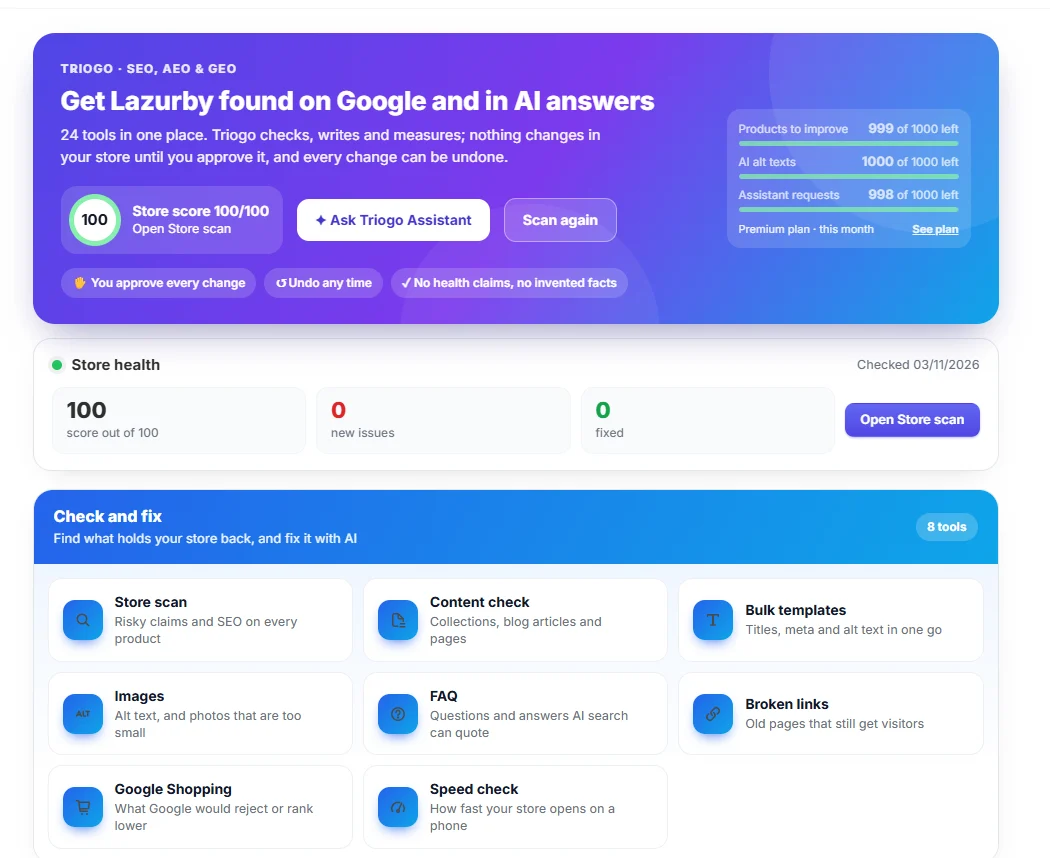
Your store score, what is left of your plan this month, and every tool grouped by what it does for you: check and fix, get found on Google and in AI answers, grow traffic, measure.
Open Triogo from Apps in your Shopify admin.
Press Scan my store: the first scan takes under a minute.
Follow the Get started checklist; it ticks itself off as you go.
Tip: Hover a tile to see where it leads. Tiles with a plan name open on that plan.
Triogo Assistant
Free plan
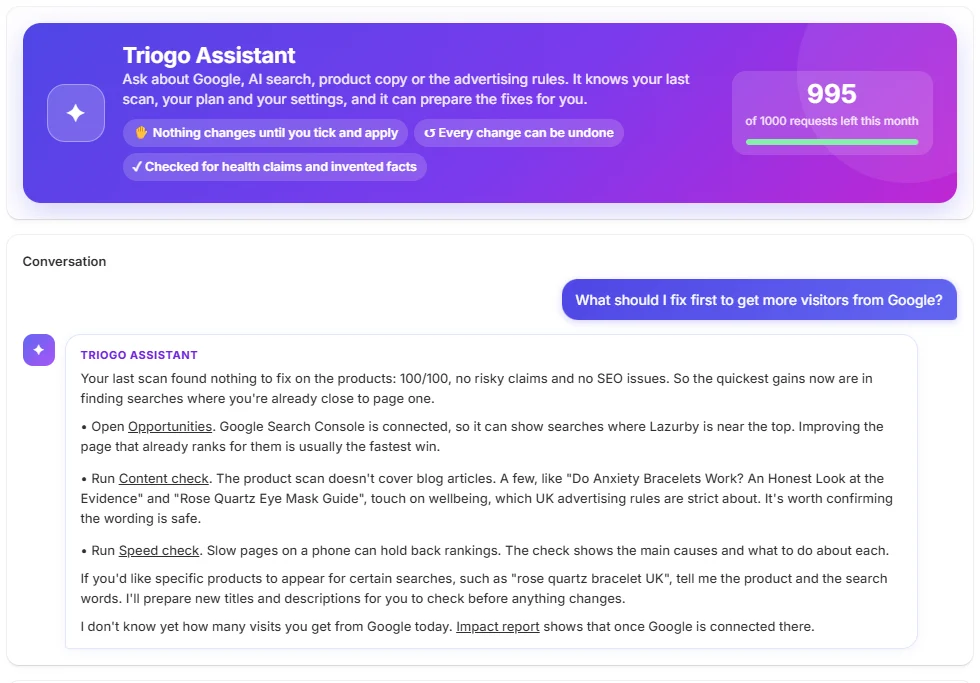
Ask in your own words. It knows your last scan, your plan and your settings, answers with the page that does the job, and can prepare fixes for products, collections, pages, articles, your home page and broken links.
Type a question, or pick one of the starter cards.
Read the answer; links open the right Triogo page.
When it prepares fixes, tick the ones you want and press Apply. Nothing changes before that.
Tip: Every request counts once against your monthly Assistant allowance, shown top right.
Settings
Free plan
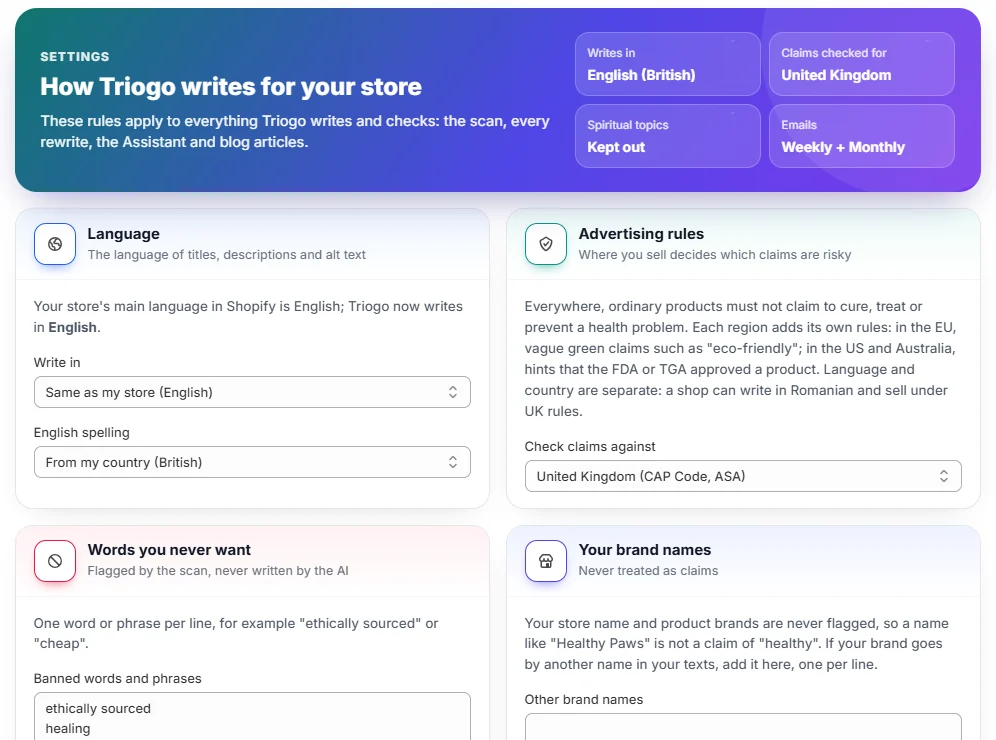
The rules Triogo follows everywhere: the language it writes in, British or American spelling, the advertising rules of the country you sell in, words you never want, your brand names, and the weekly and monthly emails.
Pick the language and spelling.
Choose the country whose advertising rules apply to you.
Add banned words, one per line, and other names your brand goes by.
Press Save settings at the bottom.
Tip: Stores that sell crystals or wellness items also see a choice to keep spiritual and esoteric topics out of everything Triogo writes.
Check and fix
Find what holds your store back, and fix it, with an undo for every change.
Store scan
Free plan
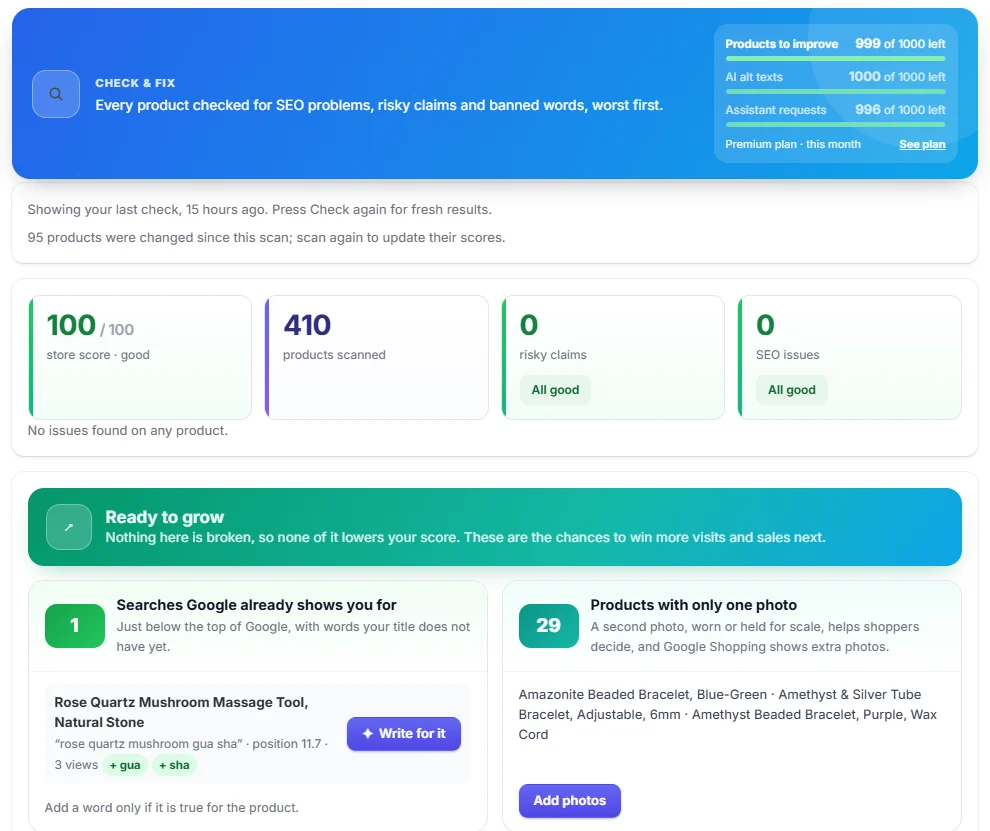
Every product checked for risky claims, banned words and SEO problems, worst first, with a score for the store and for each product. When nothing is broken, Ready to grow shows what you can win next.
Press Scan again whenever you add products.
Open a product to see its problems, or press Fix all for many at once.
In Ready to grow, Write for it adds a search Google already shows you for, only where it is true.
Fix a product
Free plan
Page title, meta description, description and alt text written from your product's own facts, with several versions to choose from. Facts your text never states, such as handmade or sterling silver, are thrown away.
Press Write with AI, or type the search words you want to be found for first.
Pick a version, edit it if you like.
Press Apply. The old text is saved and can be put back from Backup & history.
Content check
Free planFixing on Basic
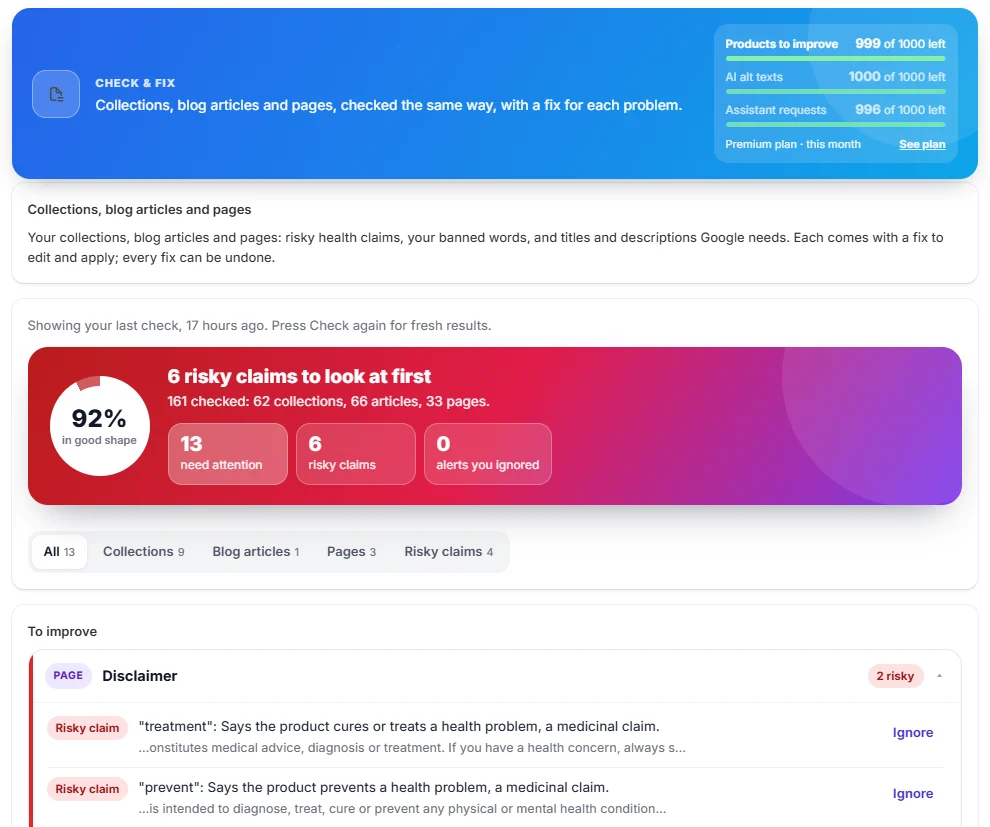
Your collections, blog articles and pages, checked the same way as products: risky claims, your banned words, and missing or overlong titles and meta descriptions.
Press Check content.
Use the buttons in the coloured card to see everything, or only risky claims.
Open a card: Check in context lets the AI read the whole text and say which sentences are really a problem.
Rewrite with AI, edit, or remove a sentence, then Apply.
Tip: Disclaimers such as “not intended to diagnose or treat” are not flagged.
Images: alt text
Free plan
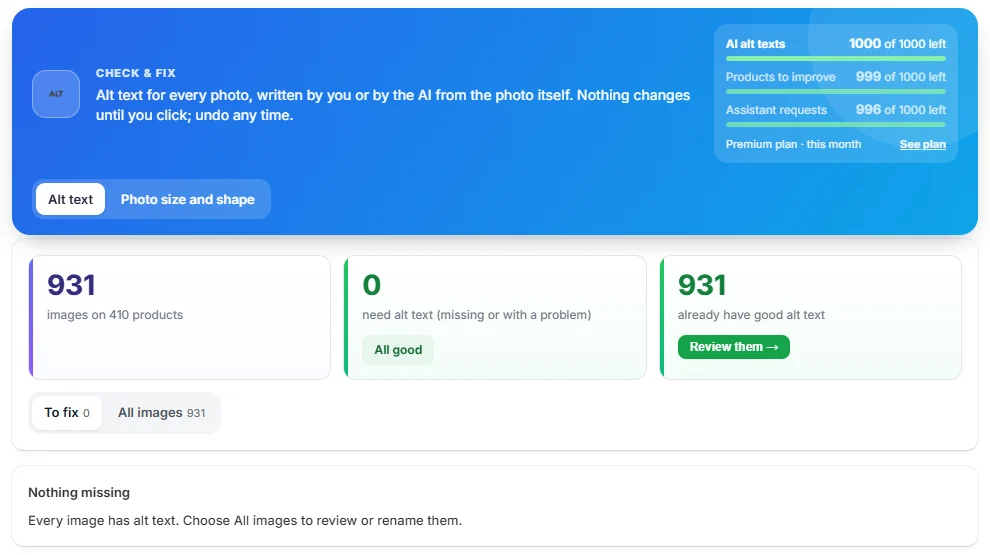
Alt text tells Google Images and screen readers what a photo shows. Triogo lists every photo with missing or weak alt text and writes it from the photo itself.
Press Scan images.
For many photos, use Fix all: tick Only products on sale, press Write all with AI, read the texts, then Apply all.
For one photo, edit the box and press Apply.
Tip: Each photo the AI describes counts once against your monthly AI alt texts.
Images: photo size and shape
Free plan
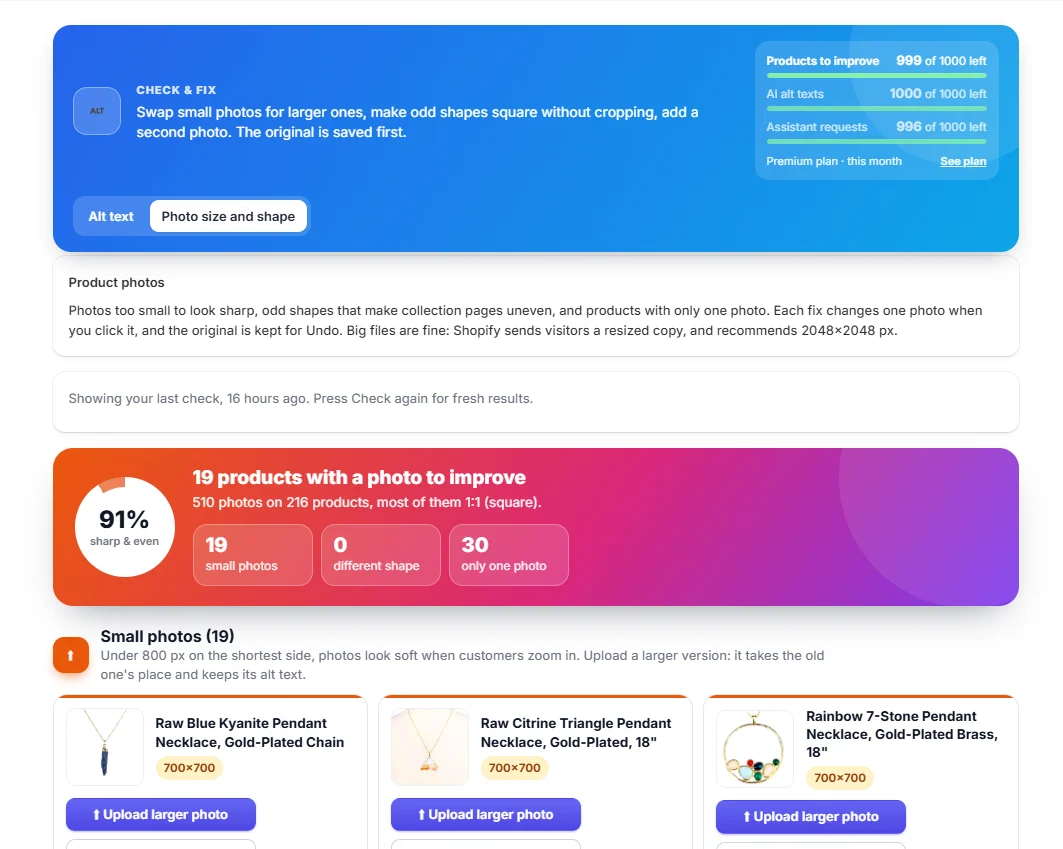
Photos too small to look sharp, odd shapes that make collection pages uneven, and products with only one photo.
Press Check photos.
Upload larger photo: the new one takes the old one's place and keeps its alt text.
Make square adds plain edges in the photo's own colour, so nothing is cut off.
Add a photo puts a second photo after the first.
Speed check
Free planEvery cause and history on Basic
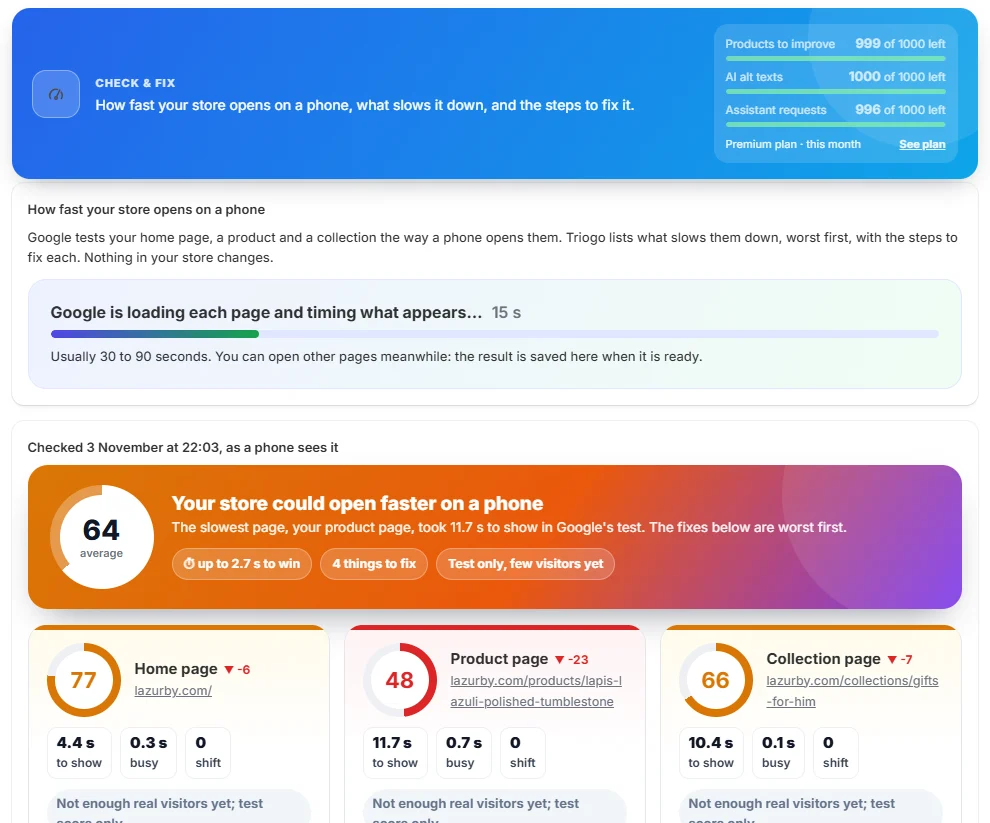
Google tests your home page, a product and a collection the way a phone opens them. Triogo lists what slows them down, worst first, with the steps to fix each.
Press Check my speed; it takes 30 to 90 seconds.
Open the first cause and tick each step as you do it.
Check again a month later, or after you change the theme or an app.
Tip: Triogo only measures. It never changes your theme or its code.
Broken links
Basic plan
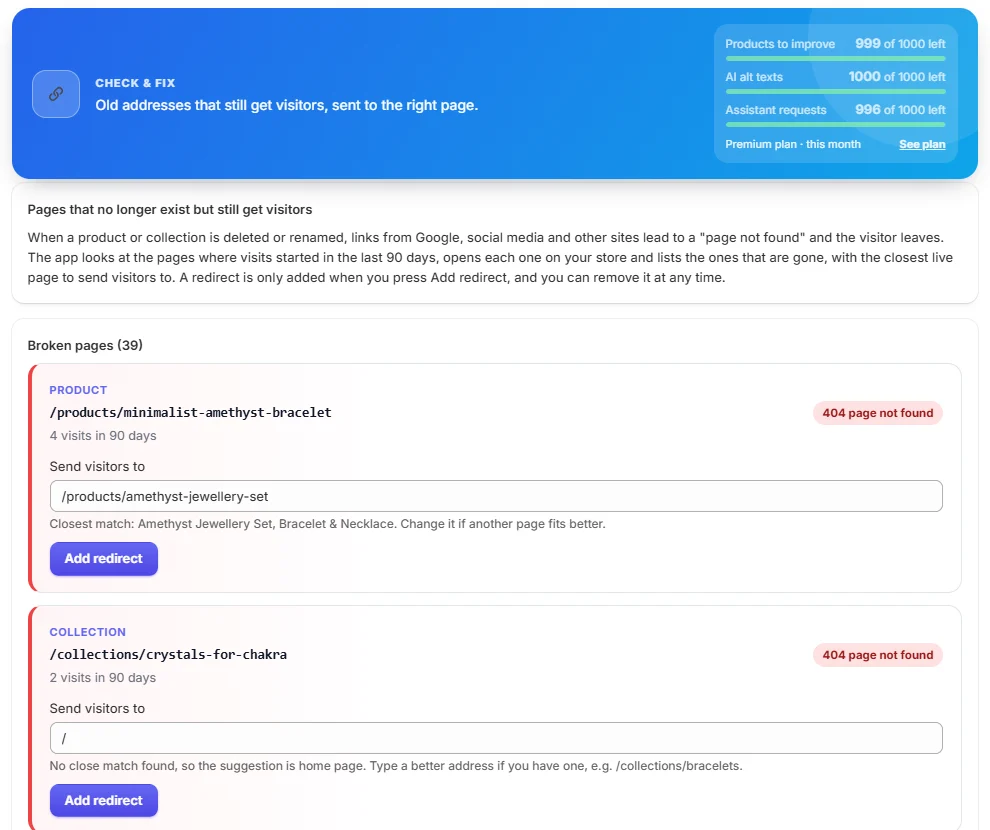
Old addresses that still get visitors, often from deleted or renamed products, each with the closest live page to send them to.
Open Broken links; it checks the pages where visits started in the last 90 days.
Change the suggested page if another fits better.
Press Add redirect. Remove a redirect any time from the same page.
Google Shopping
Free plan
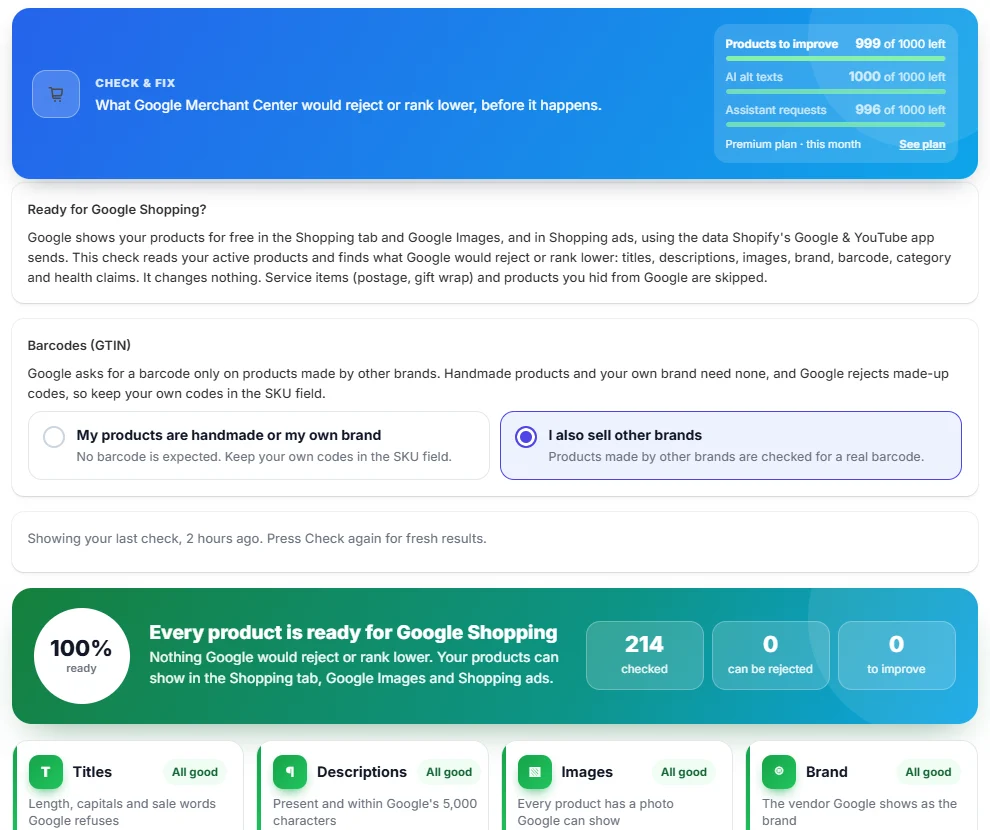
What Google Merchant Center would reject or rank lower, before it happens: titles, descriptions, images, brand, barcode, category and health claims.
Choose whether your products are your own brand or handmade, or you also sell other brands.
Press Check products.
Press Fix on any product listed.
Bulk templates
Basic plan
One pattern filled in for every product, for page titles, meta descriptions or alt text.
Pick the field and write the pattern with the product's own details.
Preview the results.
Apply to the products you tick.
Get found on Google and in AI answers
Be the store Google and ChatGPT show and quote.
AI readiness
Free plan
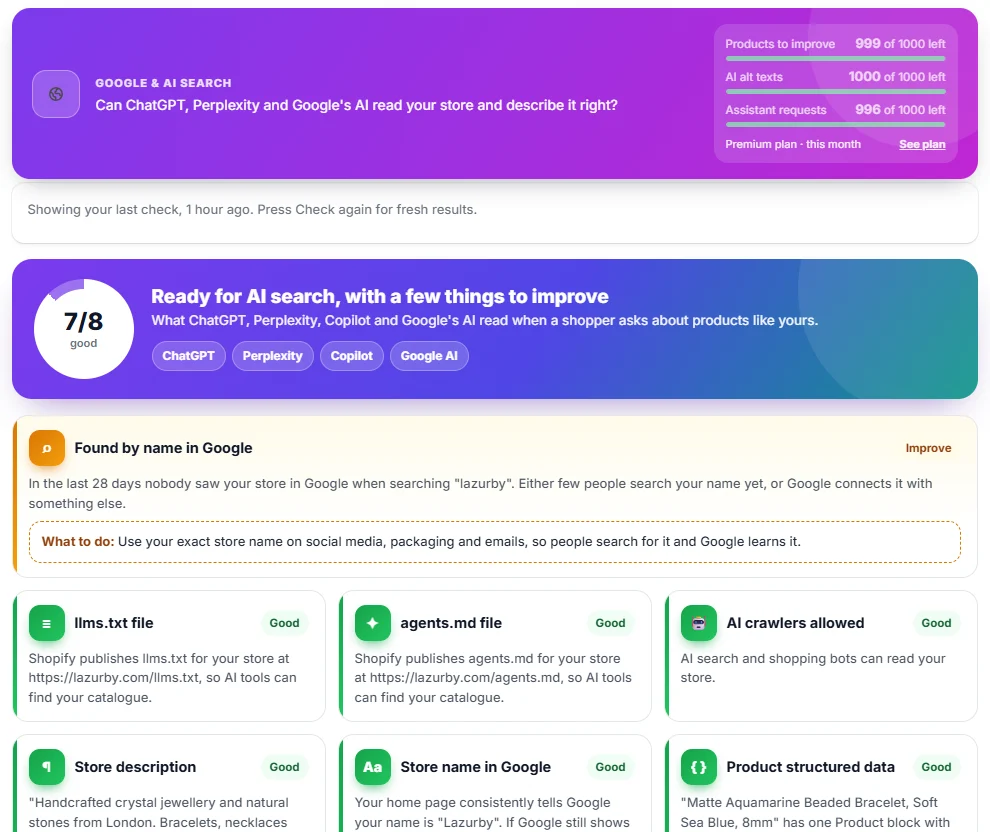
Whether ChatGPT, Perplexity, Copilot and Google's AI can read your store and describe it right: discovery files, robots.txt, store description, product data and descriptions.
Press Run check.
Fix what shows first, wide and in colour; each has a What to do.
Press Write my agents.md for a guide AI shopping assistants read, then paste it in your theme as shown.
FAQ for AI search
Basic plan
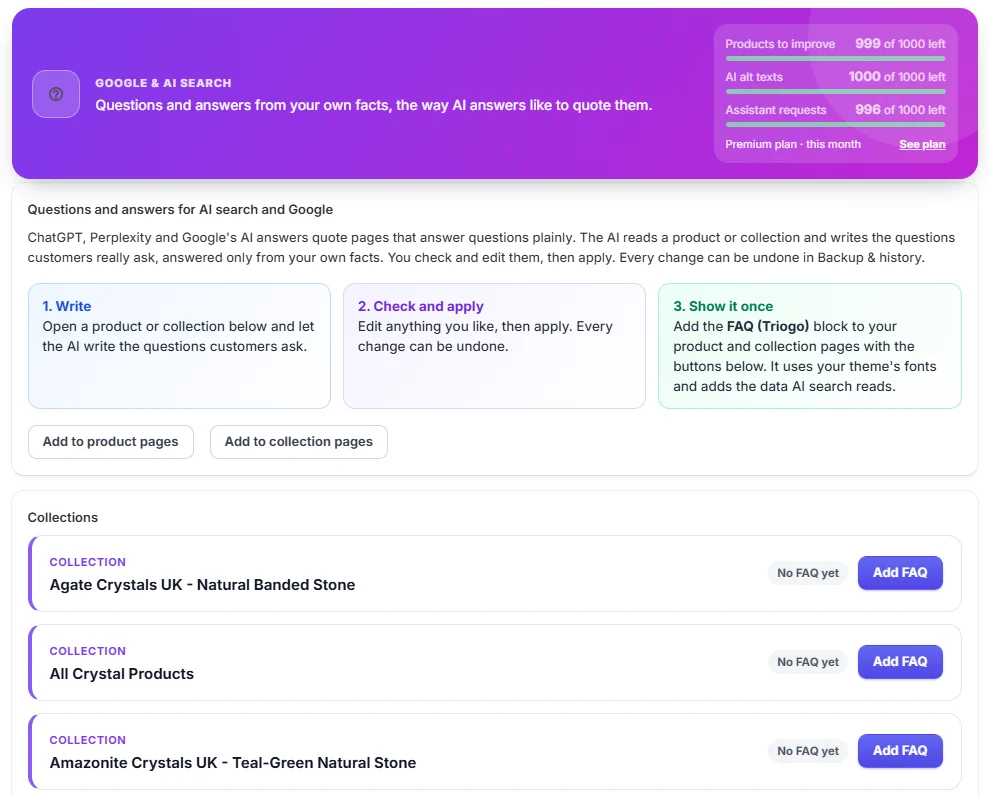
Questions and answers written from your product facts, shown in your theme with the data AI tools quote.
Pick a product or collection.
Let the AI write the questions and answers, edit any of them.
Add the FAQ (Triogo) block to your product and collection pages once, with the buttons on the FAQ page; it uses your theme's fonts.
Google rich results
Free planAdding data on Basic
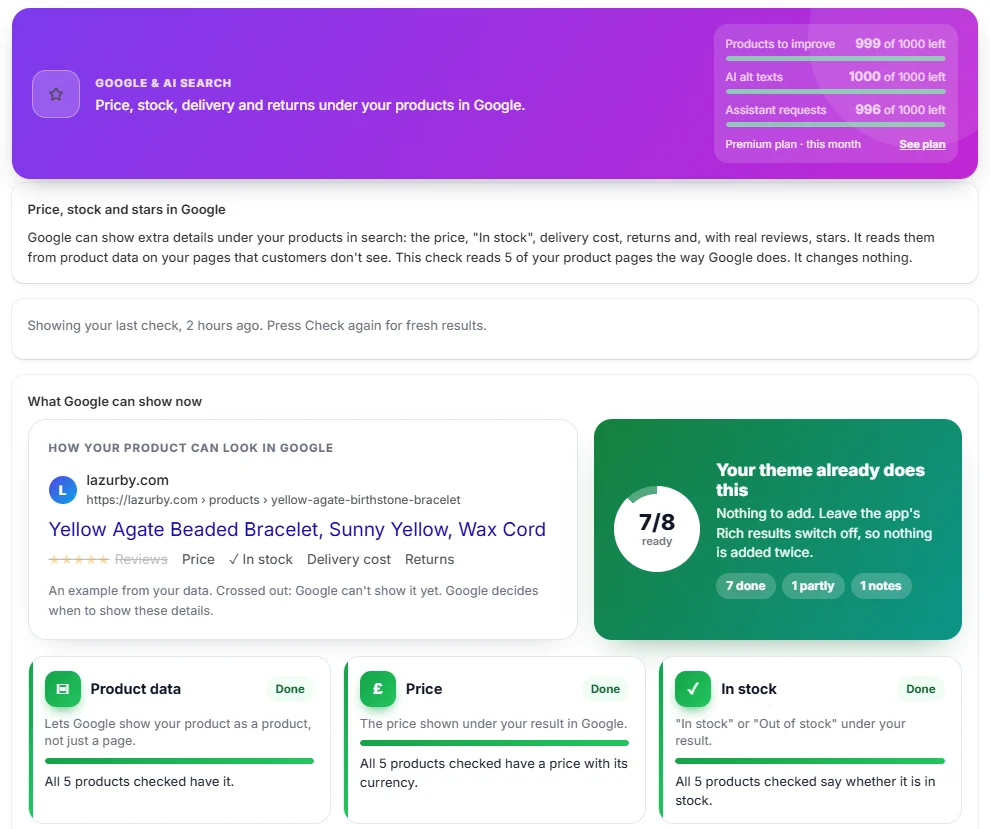
Price, stock, delivery, returns and stars under your results in Google. The check tells you what your theme already does, so nothing is added twice.
Press Check product pages.
Follow the advice in the coloured card: nothing to add, only delivery and returns, or product data.
If needed, turn on Rich results in the theme editor and pick the option the check recommends.
Home page title
Free plan
Your home page title and description, written for Google, ready to paste into Online Store → Preferences.
Ask Triogo Assistant to write a better home page title and description.
Copy the version you like.
Paste it in Online Store → Preferences and save.
Grow traffic
Win the searches you are close to, with your own Google data.
Google opportunities
Premium plan
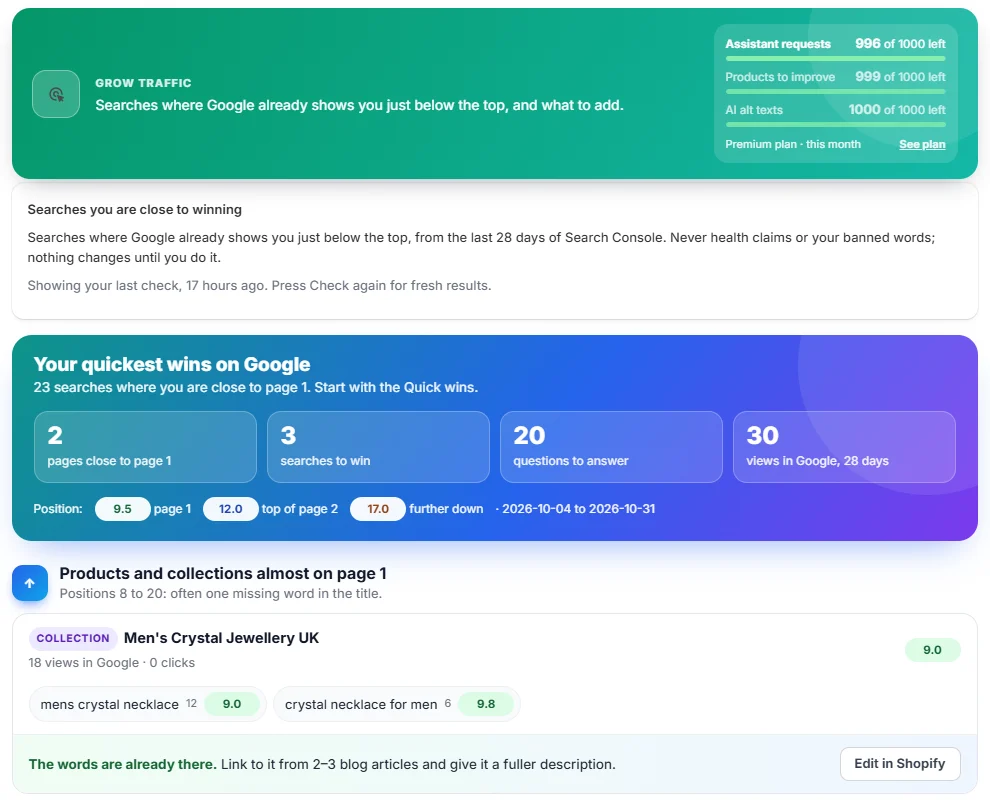
Searches where Google already shows you just below the top, from your Search Console data, with what to add. Questions your articles almost answer get answers written by the AI from the article itself.
Connect Google Search Console once, on Impact report.
Start with the articles marked Quick win: open one and press Write the answers with AI.
Copy all answers and paste them into the article under a fitting heading.
Blog articles
Premium plan
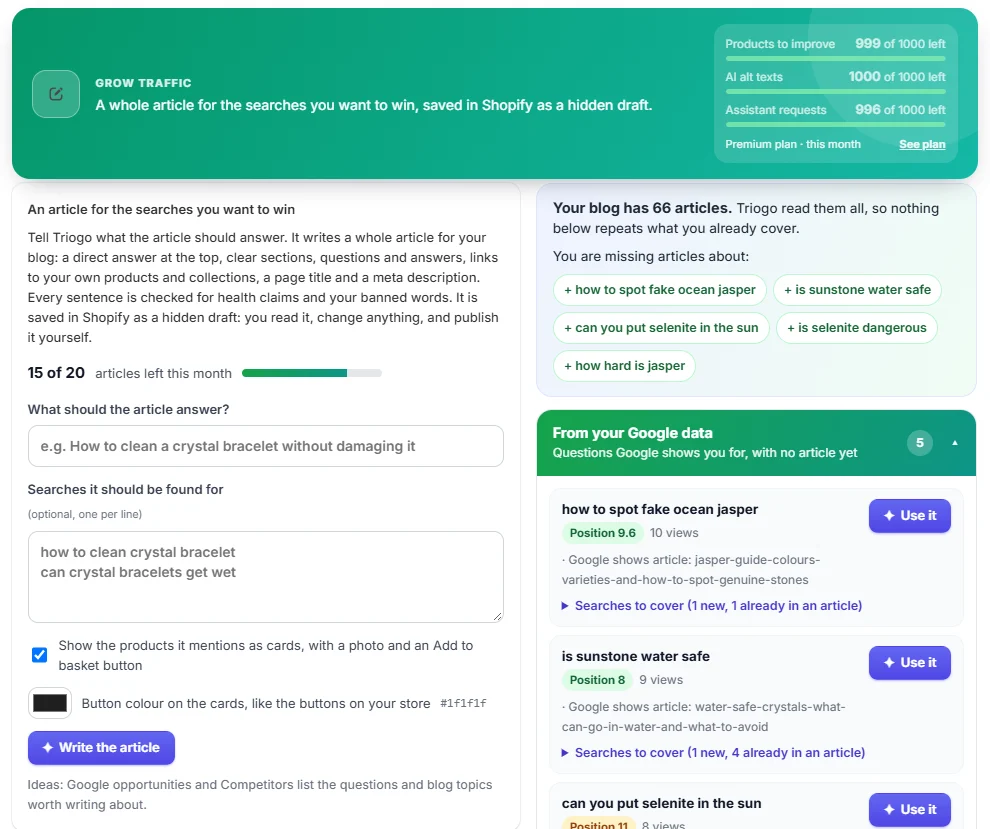
A whole article for a topic and its searches, with product cards and a buy button, checked for claims and saved in Shopify as a hidden draft. Ideas come from your Google data and from competitors, never repeating what your blog already covers.
Pick an idea on the right, or type a topic.
Choose whether to show product cards and their button colour.
Press Write article, read it in Shopify, then publish it yourself.
Tip: 5 articles a month on Premium.
Keyword positions
Premium plan
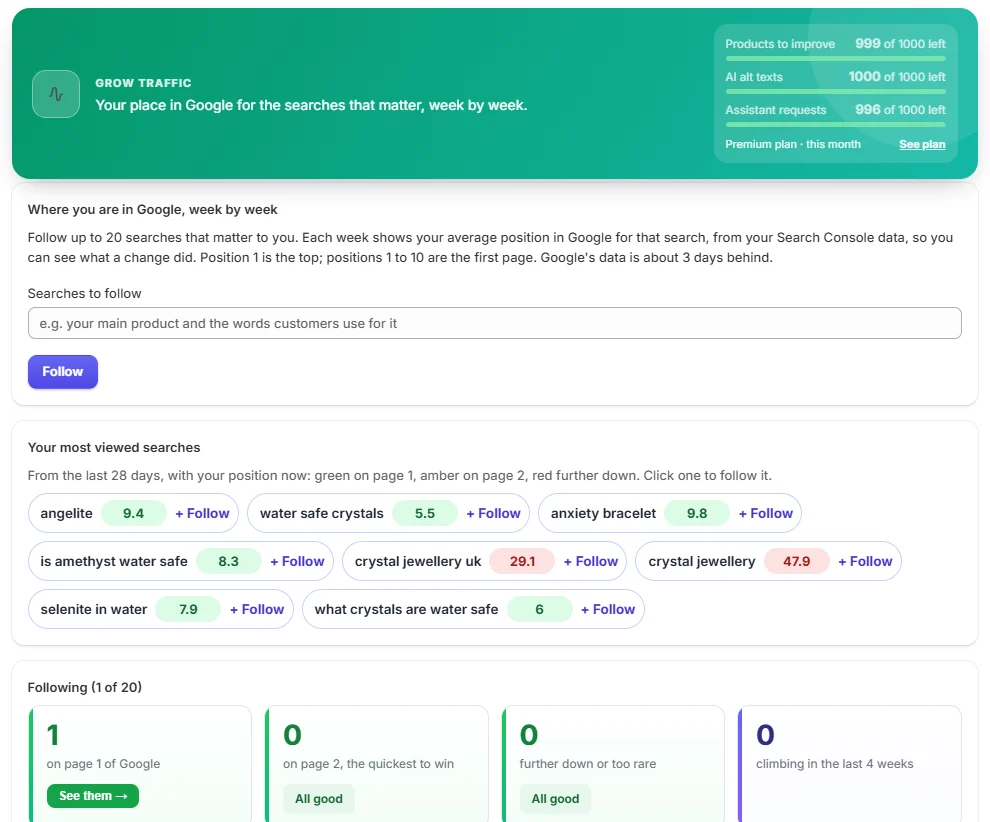
Your place in Google for the searches you care about, week by week.
Add 10 to 15 searches that matter to your store.
Come back each week to see them move.
Competitors
Premium plan
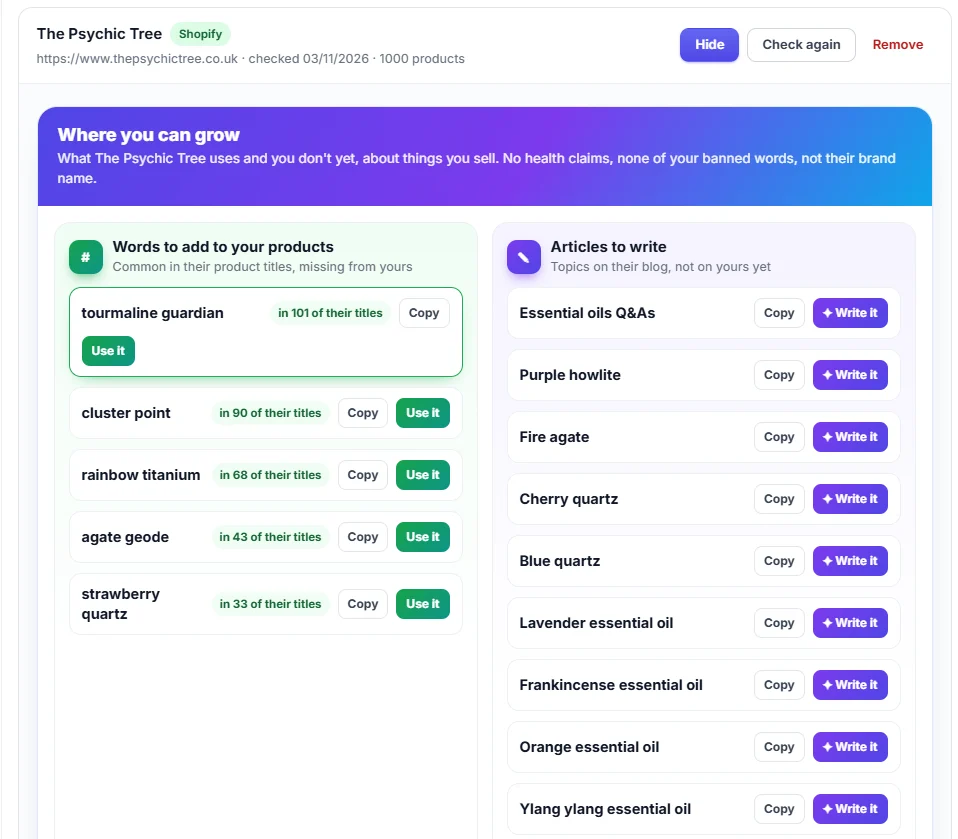
Follow up to 3 stores, on Shopify or not. Where you can grow: their words for products like yours and their blog topics, each with Copy and a next step. What they changed, and what you can do about it.
Add a competitor's address.
Use it on a word to write a product around it, or Write it on a blog topic.
Ask the Assistant about their new products; the question is filled in for you.
Blog links
Premium plan
Links from your articles to the products they mention, so readers and Google find them.
Open Blog links and review the links suggested for each article.
Tick and apply; each link can be undone.
Measure and stay safe
See what each change did, and undo any of it.
Impact report
Premium plan
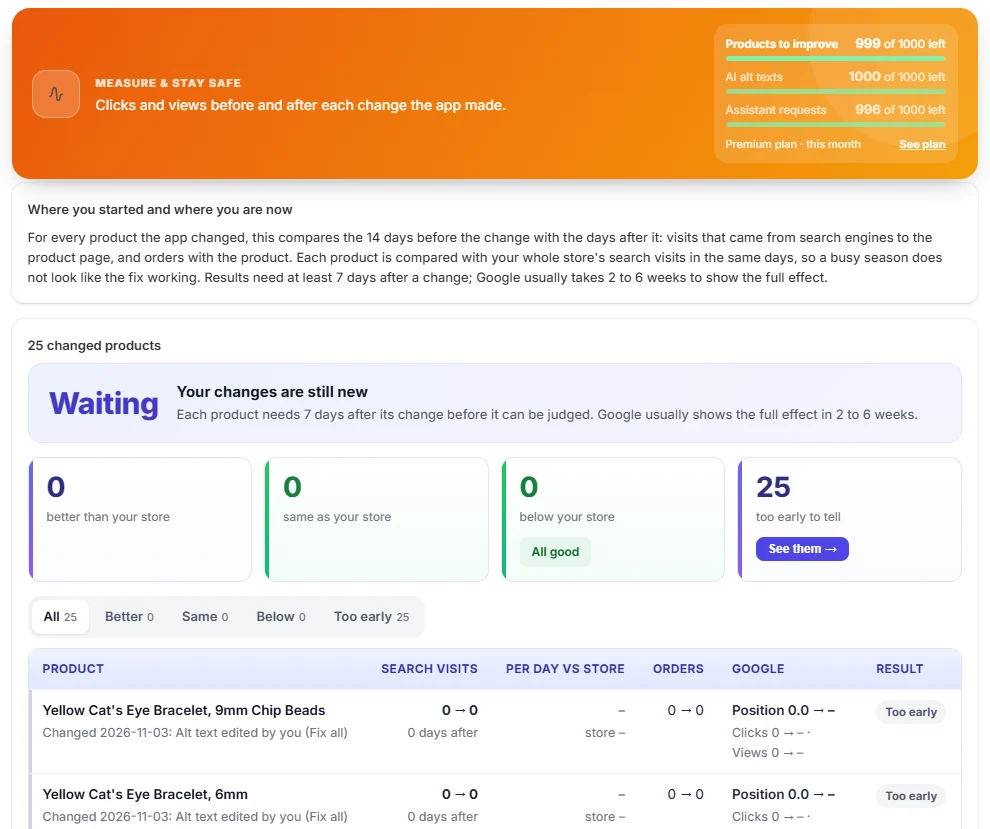
What each change did: views and clicks in Google before and after, from Search Console.
Connect Google Search Console.
Give changes 4 weeks before judging them; Google needs time.
Visits from AI
Free plan
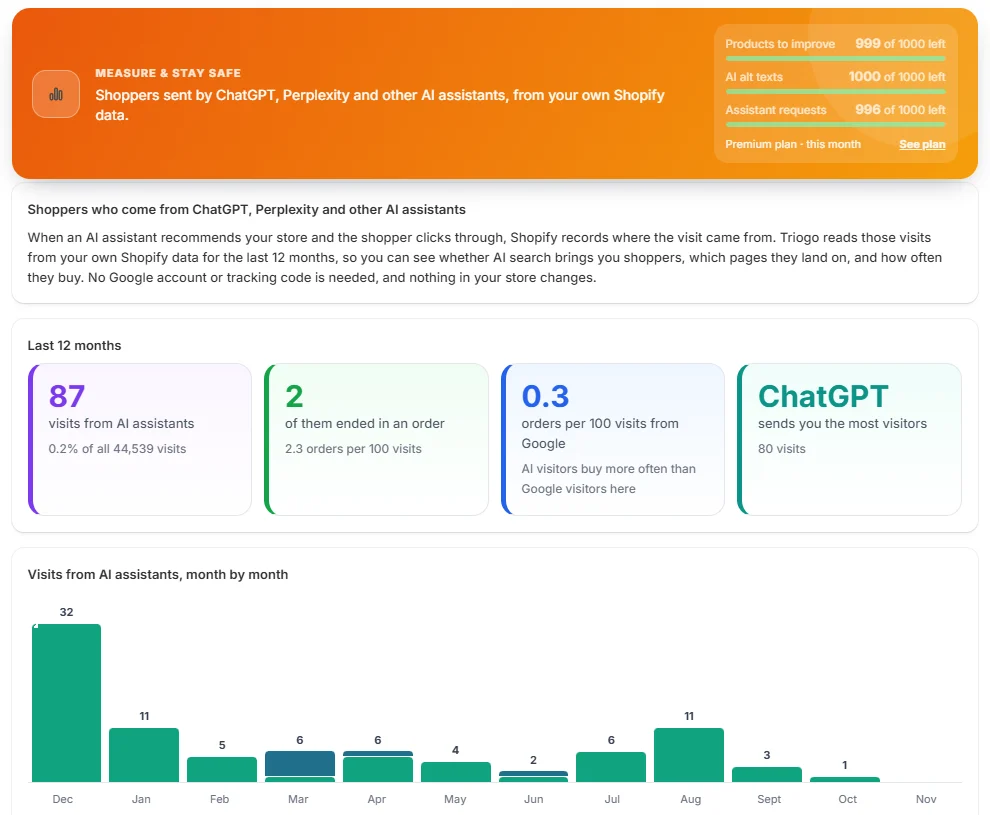
The shoppers ChatGPT, Perplexity and other assistants send you, month by month, and how often they buy, from your own Shopify data.
Open Visits from AI; nothing to set up.
Backup & history
Free plan
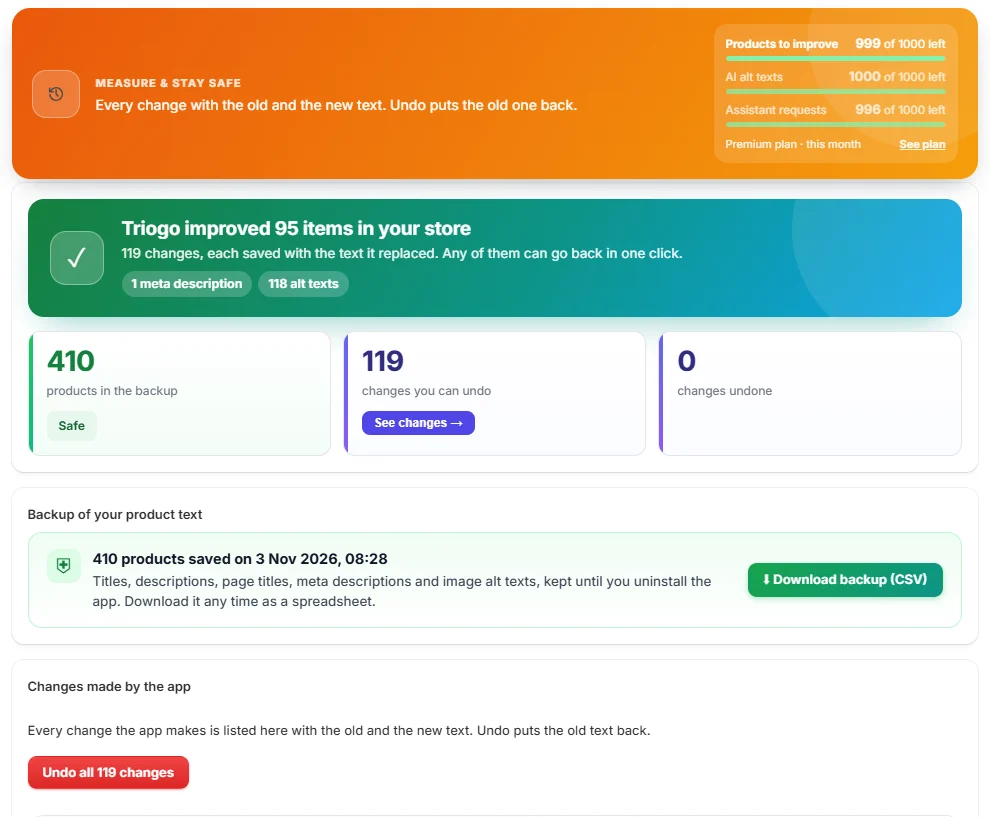
A backup of every product's text before Triogo changes anything, and every change with the old and the new text, grouped by when it was made.
Download the backup any time as a spreadsheet.
Undo one change, a whole batch with Undo these, or everything with Undo all.
Help
Free plan
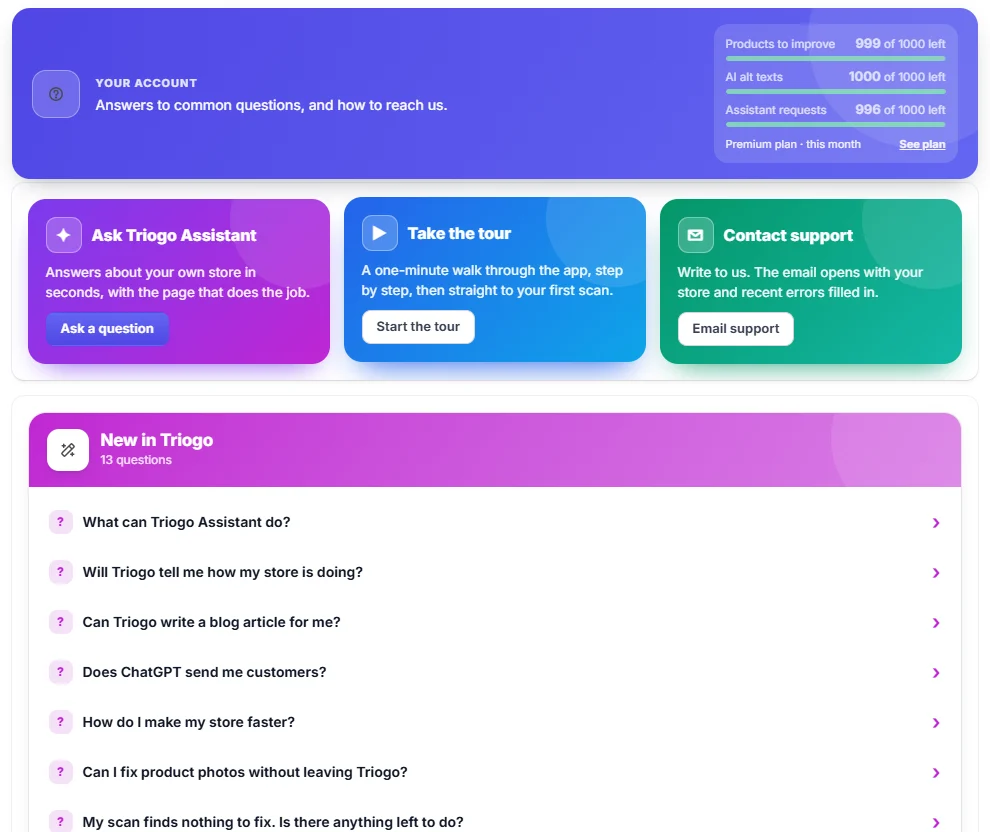
Answers to common questions, a one-minute tour of the app, and email support with your store and recent errors filled in.
Ask Triogo Assistant for anything about your own store.
Start the tour to see the app step by step.
Email support opens a message ready to send.
Plans and monthly report
Free plan
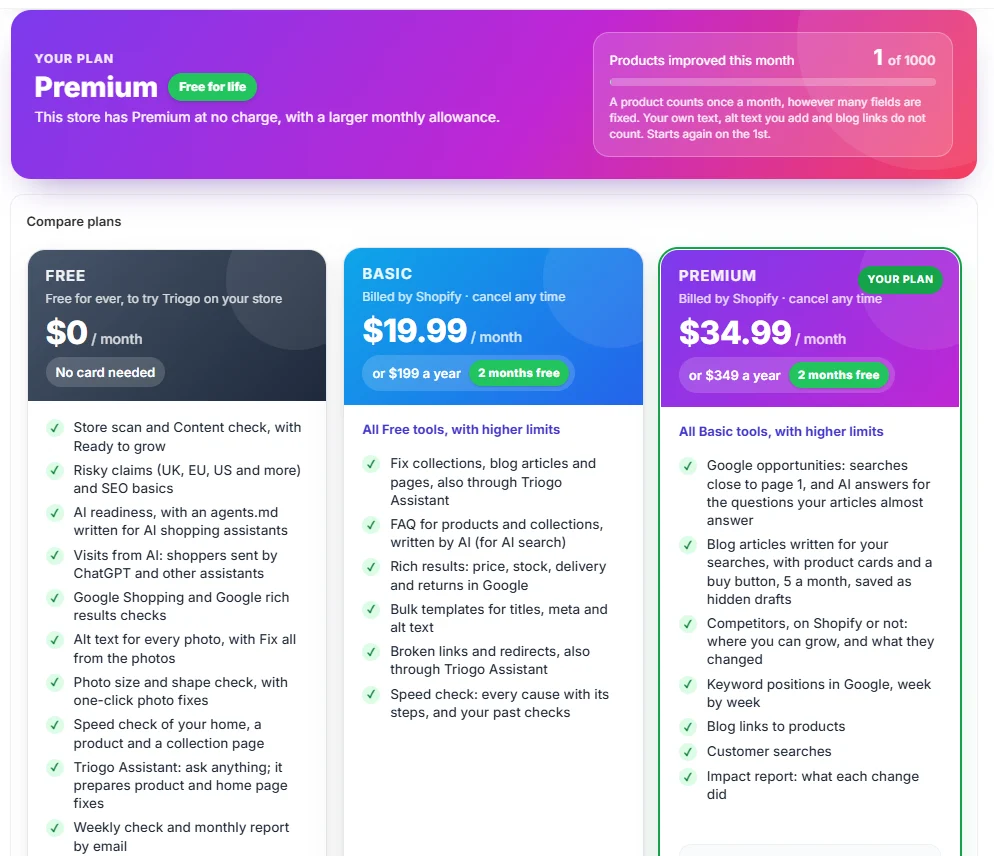
What is left of your plan this month, the plans side by side, and a monthly email on the 4th with what changed and how visits moved.
Upgrade or change plan from Plans; Shopify bills it.
Turn the monthly report on or off in Settings.
Ready to try it on your store?
The Free plan has no time limit and needs no card.